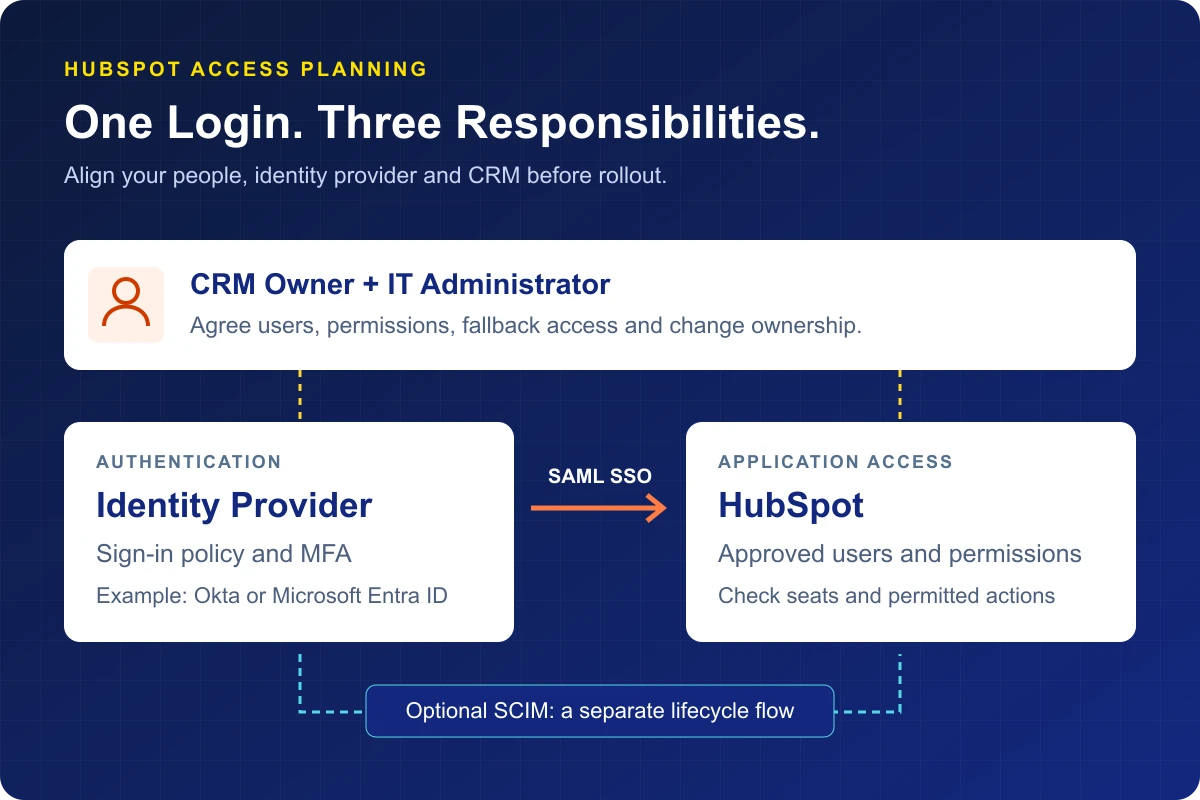
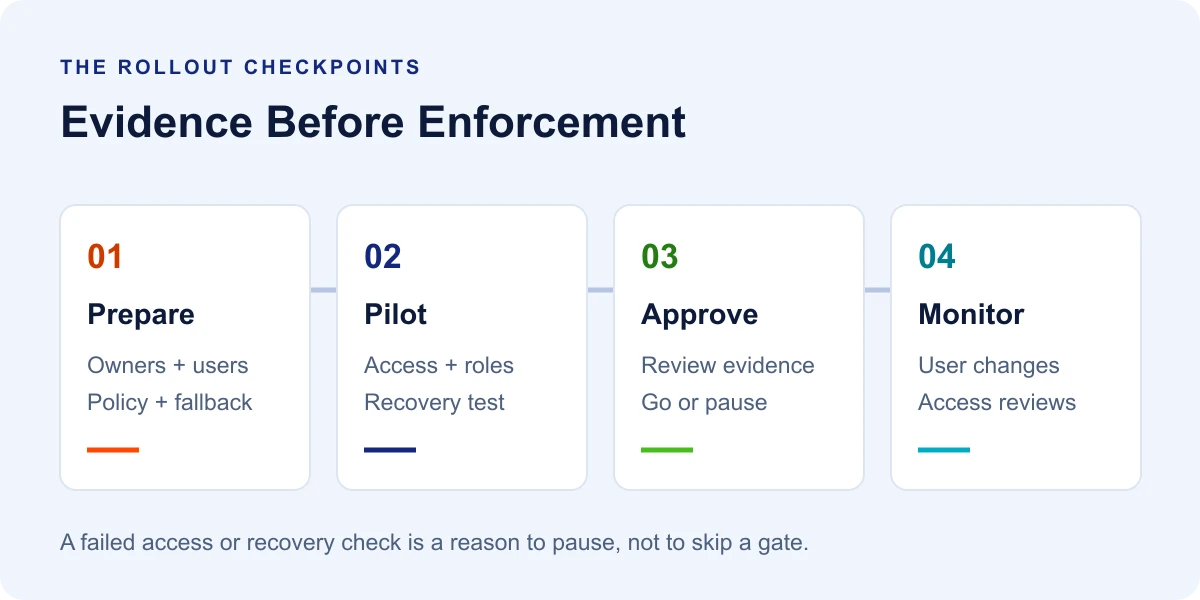
A successful HubSpot SSO setup needs more than a successful login. Agree who owns access, prepare a small test group, check permissions and confirm a recovery route before making single sign-on mandatory. Use this worksheet with your CRM owner and IT administrator to record those decisions.
This guide is for B2B teams planning employee access to their HubSpot account. It does not cover customer portals or private website content. It is an editorial planning tool, not a record of a client implementation or a replacement for your organization’s security policy.
Start With a Shared Readiness Worksheet
Before anyone changes login settings, open one shared change record. Give each item a named owner, a decision and evidence that someone has checked it. An empty field means there is still a decision to make, not permission to proceed.
1. Confirm the Account and Subscription
Record the HubSpot account ID, subscription and identity provider. HubSpot currently lists SSO for Professional and Enterprise subscriptions across its listed hubs and Smart CRM. A Super Admin is required to configure it. Check the current HubSpot SSO requirements and setup documentation against your own account before scheduling the change.
2. Assign the Two Implementation Owners
Name the CRM owner who approves business access and the IT administrator who manages the identity provider. Add a deputy for each. Record who can approve enforcement, who will communicate with employees and who will make the rollback decision if testing fails.
3. Reconcile the User List
Compare the proposed pilot group with existing HubSpot users. Record each person’s work email, identity-provider assignment, required CRM tasks and expected access. Include a restricted user, not just administrators. Resolve aliases and mismatched email addresses before the rollout window.
4. Write Down Permissions and Seats
For each pilot user, list one task they should be able to perform and one they should not. Examples might be editing an assigned contact or being unable to change account settings. Confirm the required seat separately. A working login is not evidence that the person has the correct business access.
5. Agree on Fallback Access
Identify an approved fallback administrator, the recovery route and the person authorized to use it. HubSpot recommends exempting at least one Super Admin from the SSO requirement. Protect that route under your security policy, test it before the change and record how its use will be reviewed.
6. Reserve a Change Window
Choose a window when both owners are available. Tell the pilot users which login route to test, where to report a problem and when to stop retrying. Keep the support contact and rollback notes outside the system whose access you are changing.
If broader account configuration is still unfinished, start with the HubSpot setup checklist for B2B companies. This article focuses on the access decision, not pipelines, data imports or marketing configuration.
Keep Authentication, Provisioning and Permissions Separate
Authentication: SSO establishes how a person signs in. In a SAML connection, the identity provider sends authentication information to the application.
Provisioning: a separate process creates, updates or deactivates user accounts. SCIM can automate supported lifecycle actions when configured.
Permissions and seats: determine which work a user can perform and which licensed capabilities are available. Review both rather than treating app assignment as complete access approval.
SSO is not a substitute for MFA. Ask your identity administrator to verify the MFA policy applied to HubSpot access and the protection used for exempt accounts. Do not weaken authentication simply to make a pilot pass.
Check Enforcement Before You Run the Pilot
Do not assume configuration leaves enforcement off. HubSpot documents the SSO requirement as enabled by default after setup. Agree and verify the enforcement state and exemptions before saving the configuration. If you cannot safely isolate the pilot, stop and revise the test plan with your administrator.
Use account-specific values from HubSpot for the SAML connection, not values copied from another organization’s example. Follow the provider’s configuration guide. For Microsoft Entra ID, use Microsoft’s HubSpot integration guide for provider-specific setup, while checking current HubSpot navigation in HubSpot’s own documentation.
A Pilot Matrix That Tests More Than Login
For every scenario below, record the tester, date, expected result, actual result and evidence location. Use fresh browser sessions so an existing login does not hide a problem. Screenshots used as evidence should not contain tokens, certificates, customer records or personal information.
Normal User
Ask a pilot user to sign in and complete one approved CRM task. Pass only when they reach the correct HubSpot account and can perform the intended action. Record which account and task were tested.
Restricted User
Use a low-privilege pilot account. Check an allowed action and a prohibited action. If the person unexpectedly gains access to administrative settings or unrelated records, stop the rollout and investigate the permission assignment.
Approved Fallback Administrator
In a separate browser session, test the documented exempt-account login route and confirm the administrator can reach the relevant settings. Do not rely on an already-open session. Store recovery material in your approved secure system, not in the worksheet.
Mismatched Email
Use a designated test account to exercise an identity mismatch. The expected outcome should be an identifiable access failure, not entry to someone else’s account. Record the error and the correction owner without using a real employee as an uncontrolled experiment.
Login Entry Points
Test the routes employees will actually use: the HubSpot sign-in page and, where configured, the identity-provider app launcher. Microsoft documents both service-provider-initiated and identity-provider-initiated flows for its HubSpot integration. Record a result for each route rather than assuming one passing test covers both.
Identity-Provider Outage Procedure
Run a tabletop exercise: who detects the outage, who authorizes recovery and how are users informed? Rehearse the approved fallback route without deliberately disabling your production identity provider. Define what the support team should do if recovery also fails.
Treat SCIM as a Separate Handoff
You can plan SSO without assuming automated user creation. If provisioning is in scope, give it its own owner, test cases and rollback notes. Confirm your provider’s supported integration rather than assuming Okta instructions apply to Microsoft Entra ID or another provider.
For Okta, HubSpot’s SCIM provisioning documentation requires SSO and describes domain verification. It also explains that seat assignment depends on the pricing model, matching existing users can become SCIM-managed and Okta does not assign HubSpot teams. Check these consequences before connecting an existing employee population.
Okta’s role-mapping guidance requires exact matches between the assigned role and the HubSpot permission-set name, including spaces and capitalization. Treat the mapping as configuration that needs review, not free-form text.
Create: test a designated new user and verify the resulting permissions and seat.
Change: update the test user’s approved role and verify the resulting access.
Deactivate: test the documented offboarding behavior with a test account and confirm the outcome in HubSpot.
Recover: document the supported correction or disconnect procedure before enabling broad synchronization.
Keep an explicit decision about which system owns each user field. For Okta-managed users, HubSpot documents restrictions on editing user information locally. A manual correction in the wrong system may not be the right long-term fix.
The Go/No-Go Decision
Hold a short review with both implementation owners. An unresolved access failure, untested fallback route or unexplained permission change is a reason to pause, not a minor item to finish after enforcement.
The intended account, user population and change window are confirmed.
Every pilot scenario has a recorded result and an owner.
Required access works and prohibited access remains blocked.
The fallback administrator has completed a fresh-session test.
MFA, exemptions and enforcement match the approved policy.
SCIM is either separately tested or explicitly out of scope.
Employees have the correct login instructions and support contact.
The rollback decision maker and recovery procedure are available.
Give the Setup an Ongoing Owner
After rollout, add access reviews, joiner/mover/leaver checks and certificate-expiry reminders to the team’s operating process. Revisit the test record when identity-provider configuration, domains, email formats or permission sets change. Keep evidence of what changed and who approved it.
Test a normal user, a restricted user, an approved fallback administrator, an identity mismatch and the login routes your employees use. Add a tabletop outage exercise. Record results for access and permissions, not just whether a sign-in page opened.
Does SSO Automatically Create HubSpot Users?
Do not assume it does. Authentication and account provisioning are separate responsibilities. Decide whether users will be created through an approved manual process or a supported provisioning integration, then test that process independently.
How Is SCIM Different From SSO?
SSO concerns authentication; SCIM concerns user lifecycle management. A person can have a working sign-in flow while a provisioning action fails. Your test record should capture both where both are in scope.
How Should We Handle Fallback Administrator Access?
Use an explicitly approved recovery account and procedure. Keep the route protected, test it in a fresh session and record who can authorize its use. Review exceptions after rollout rather than leaving them unmanaged.
Does SSO Remove the Need for MFA?
No. SSO and MFA address different aspects of access. Have your security owner confirm the applicable identity-provider policy and the protection on exempt accounts before rollout.
Can We Use the Same Instructions for Every Identity Provider?
No. Use the current provider-specific guide for configuration and provisioning support. Keep the readiness worksheet consistent across providers, but adapt the implementation and tests to the integration you actually use.
Keep Reading
Continue The Conversation
More articles selected from the same subject area.
Teams switch to HubSpot CMS because they need their website to work as part of their revenue system, not as a separate marketing asset. When your website, CRM, automation, and reporting all live in one platform,…
Compare WordPress and HubSpot Content Hub by flexibility, CRM connection, maintenance, marketing operations, and the practical requirements behind a platform decision.
Why Automation Is the Multiplier Your Marketing Team Needs HubSpot marketing automation workflows do not replace your marketing team. They multiply what your team can do by removing the manual, repetitive work that consumes time without…